• Skip to main content
  • Skip to primary sidebar

GbAppsCo.Org.PK

Blog

How to Unread Messages in GB WhatsApp After Opening Them

Message management can easily become a nightmare, especially when messages from friends, family, and work, as well as group messages, all come at the same time. Sometimes, you open a message but are not yet ready to respond. Other times, you just want to focus on other messages without sending a read receipt.

This is where GBWhatsApp comes in handy. Unlike the regular version of WhatsApp, GBWhatsApp provides additional functionality to help you better manage your messages. One of its most helpful features is the “Mark as Unread” function, which allows you to keep your messages organized without sending a read receipt to the sender.

What Does “Mark as Unread” Mean in GBWhatsApp?

The “Mark as Unread” function in GBWhatsApp enables you to mark a message as unread even after opening it.
GB WhatsApp Tips

This is helpful when:

  • You have opened a message, but are not yet ready to respond
  • You want to go back to a message later
  • You are using messages as reminders
  • You want better organization in your inbox

The “unread” feature allows you to add a visual reminder (blue or green dot) to help you remember to go back to that conversation.

How to Unread Messages in GBWhatsApp

To unread messages in GBWhatsApp, you need to follow these simple steps:

Step 1: Open GBWhatsApp

Open the app on your Android smartphone. Ensure that you have the latest version of the app to enjoy a smooth experience and all its features.

Step 2: Find the Chat

Go through your list of chats and find the one that you want to unread. It could be a one-on-one conversation or a group conversation.

Step 3: Long Press the Chat

Press and hold the chat until a menu pops up at the top of the screen.

Step 4: Tap “Mark as Unread”

Tap the “Mark as Unread” option from the menu.

Step 5: Check for the Indicator

A blue dot will appear next to the chat to indicate that the chat has been marked as unread.

The person will not be notified about this action. It is simply a way for you to better organize your chat list.

Using the Notification Panel to Keep Messages Unread

Another intelligent way to unread messages on GBWhatsApp is through the use of your notification panel.

When you read a message from the notifications without opening the app, the message may still be unread.

How to Do It:

  • Pull down your notification bar
  • Read the message preview
  • Avoid tapping the notification
  • As long as you don’t open the full message inside the app, the read receipt will not be sent.

This is a great way to unread messages if you’re busy.

Managing Group Messages as Unread

Group messages can be very disorganized. With many people participating in the group, messages are constantly flooding in. It is easy to miss out on important messages.
GB WhatsApp Tips

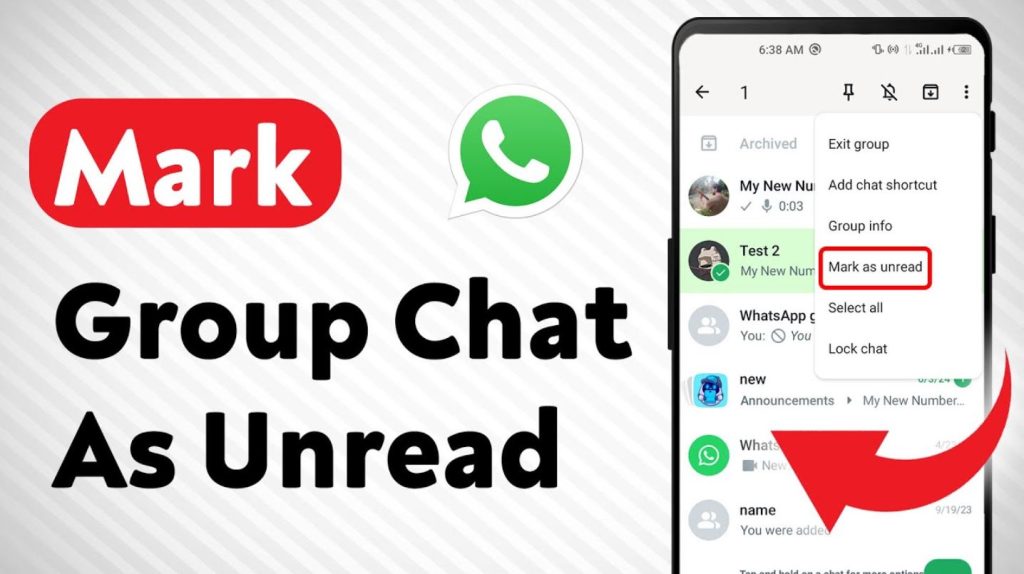
Here’s how to manage group messages using the unread feature:

Step 1: Long-Press the Group Chat

  • In your list of chats, long-press the group message.

Step 2: Select “Mark as Unread”

  • Tap the option from the menu.

Step 3: Customize Notifications

  • Go to Settings > Notifications and customize alert preferences for the group.

This helps you:

  • Track important group messages
  • Avoid notification overload
  • Return to discussions when ready

The unread marking feature in group conversations helps you stay organized without feeling the need to respond right away.

Why the Unread Feature Is So Helpful

The unread feature in GBWhatsApp has several uses that can be very helpful:

✔ Improved Organization

You can focus on important conversations and come back to them later.

✔ Avoids Pressure to Respond Immediately

You don’t have to respond right away after reading a message.

✔ Reminder Functionality

Unread messages serve as a reminder to follow up on conversations.

✔ Privacy Management

You can manage conversations without the other person knowing.

This feature is very useful and can make a big difference in how you manage conversations.

Tips for Seamless Messaging with GBWhatsApp

Here are some tips to help you use this feature effectively:

Use in Combination with Muted Conversations

  • Mute conversations that are not as important while marking important conversations as unread.

Regularly Check Unread Messages

  • Don’t let unread messages build up. Check them daily.

Use as a Task Reminder

  • Mark messages from clients or work-related conversations as unread to remind yourself to follow up.

Update the App Regularly

  • Using the latest version will ensure smooth functionality and fewer bugs.

These tips will help you remain in control of your messaging setup.
GB WhatsApp Tips

Important Note

Although GBWhatsApp offers advanced functionality such as marking messages as unread, keep in mind:

  • It is not an official WhatsApp app.
  • It is a third-party app with modifications.
  • There could be security risks or account limitations.

Remember to use such apps responsibly and refrain from sending highly confidential information.

Final Thoughts

Learning how to mark messages as unread in GBWhatsApp will give you the flexibility and freedom to communicate without stress.

Rather than being forced to respond immediately, you can:

  • Organize your chats.
  • Give priority to important chats.
  • Handle group chats.
  • Protect your privacy.

In a world where immediate responses are mandatory, being in control of your message status is liberating. By adopting the right mindset, you can transform overwhelming chats into a structured and peaceful messaging experience.
Why You Can’t Install GBWhatsApp on Your Android Phone and Easy Solutions

If you are experiencing issues while trying to install GBWhatsApp and getting errors such as “App not installed” or failing to install, do not worry. This is a common problem faced by many Android users. Since GBWhatsApp is a modified version of WhatsApp, it does not have the same installation procedure as other apps downloaded from the Play Store.

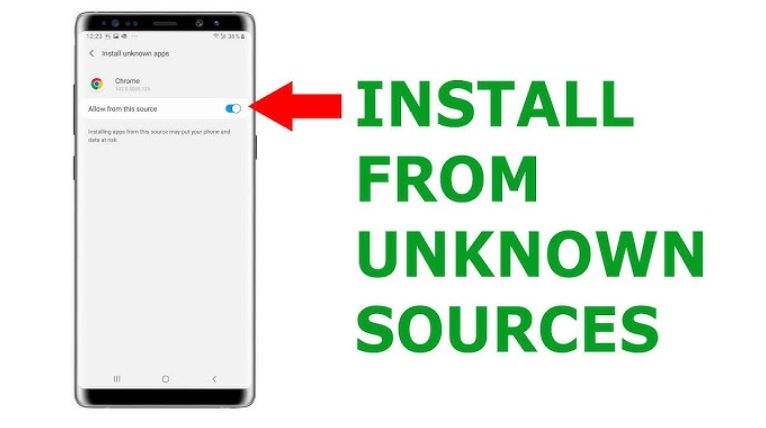
1. Unknown Sources Installation Not Enabled

Since GBWhatsApp is a third-party APK file, your Android device will not allow it to install by default for security reasons.

GBWhatsApp Android

Why This Problem Occurs:

Your Android device only allows apps from the Google Play Store. However, you need to enable the installation of apps from other sources manually.

Solutions to Overcome the Problem:

  • Go to Settings
  • Tap Security or Privacy (depending on your device)
  • Select Install Unknown Apps
  • Enable Allow from this source for your browser or file manager
  • Try to install the APK again
  • After enabling this option, your device will allow the APK file to install.

2. Conflicting WhatsApp Versions

Another reason why you cannot install GBWhatsApp on your Android device is due to a version conflict.

If you already have the official WhatsApp version installed on your device using the same phone number, there could be a conflict between the two versions.

Solutions:

Option 1:

  • Backup your WhatsApp messages
  • Uninstall the official WhatsApp version
  • Install GBWhatsApp
  • Restore your backup

Option 2:

  • Keep the official WhatsApp version
  • Install GBWhatsApp using a different phone number
  • This will avoid any conflicts between the two versions due to their signatures.

3. Corrupted or Incomplete APK File

Sometimes, the problem is not with your Android device, but with the APK file itself.

If the download is incomplete or interrupted, your Android device will not be able to install the APK file.

How to Fix It:

  • Delete the existing APK file
  • Re-download the GBWhatsApp APK file from a trusted website
  • Ensure that you download the latest version
  • Verify that it is compatible with your Android version
  • In all cases, it is always best to avoid any suspicious or outdated download links.

4. Insufficient Storage Space

Although the size of GBWhatsApp is not very big, your device still requires sufficient free storage space to install and run it smoothly.

Why Installation Fails:

If your device’s storage space is almost full, Android will automatically pause the installation process.

How to Fix It:

  • Make sure there is a minimum of 100-150 MB of free storage space
  • Remove unnecessary apps
  • Remove cache files
  • Remove unnecessary media or downloads
  • Once you have freed up storage space, you can try installing GBWhatsApp again.

5. Android Version Compatibility:

GBWhatsApp is compatible with Android 5.0 (Lollipop) or later versions.

However, if your device is older, the app may not even install on your device.

Check Your Android Version:

  • Go to Settings
  • Tap on About Phone
  • Check the Android Version

If your device is running on a version lower than Android 5.0, you can:

  • Update your operating system (if possible)
  • Or switch to a newer device that supports Android 5.0 or later
GBWhatsApp Android

6. Conflicting Security or Antivirus Apps:

Some antivirus or mobile security apps automatically prevent the installation of third-party APK files.

Why This Happens:

Security software might identify GBWhatsApp as a threat since it’s not from the Play Store.

How to Fix It:

  • Turn off your antivirus software temporarily
  • Download GBWhatsApp
  • Turn your antivirus software back on
  • Just remember to download the APK file from trusted sources only.

7. “App Not Installed” Error (Signature Conflict)

If you installed a tweaked version of WhatsApp or GBWhatsApp before, your Android device might recognize a signature conflict.

This is most likely the cause of the “App not installed” error message.

How to Fix It:

  • Uninstall all previous versions of GBWhatsApp completely
  • Go to Settings > Apps
  • Remove cache data from Google Play Services
  • Restart your phone
  • Reinstall GBWhatsApp

This will remove any leftover files that might be causing the conflict.

8. Google Play Protect Blocking Installation

Google Play Protect is a security service that scans apps for potential threats. Since GBWhatsApp is not from the Play Store, Google Play Protect might block it.

How to Temporarily Disable Play Protect:

  • Open Google Play Store
  • Tap your profile icon
  • Go to Play Protect
  • Tap Settings
  • Turn off Scan apps with Play Protect
  • Install GBWhatsApp, and then turn Play Protect on again for security.

Important Tip Before Installing

Before you switch apps:

✔ Backup your chats

✔ Use the latest GBWhatsApp APK version

✔ Ensure compatibility with your device

✔ Avoid sharing sensitive data

GBWhatsApp is a third-party app, which means that it is not Play Store verified.

GBWhatsApp Android

Final Thoughts

There could be many reasons why you are unable to install GBWhatsApp on your Android smartphone, ranging from unknown sources being disabled on your phone to storage space issues or version incompatibility. However, most of these issues can be resolved with proper guidance.

By following proper guidelines to enable unknown sources, checking compatibility, deleting storage space, and avoiding corrupted files, you can easily install GBWhatsApp without any issues.

Primary Sidebar

Recent Posts

  • How to Unread Messages in GB WhatsApp After Opening Them
  • Why You Can’t Install GBWhatsApp on Your Android Phone and Easy Solutions

Categories

  • Blog

Copyright © 2026 All Right Reserved.